Tasks & Reminders
Create tasks with completion tracking, reminders with notifications, and recurring items.
Tasks
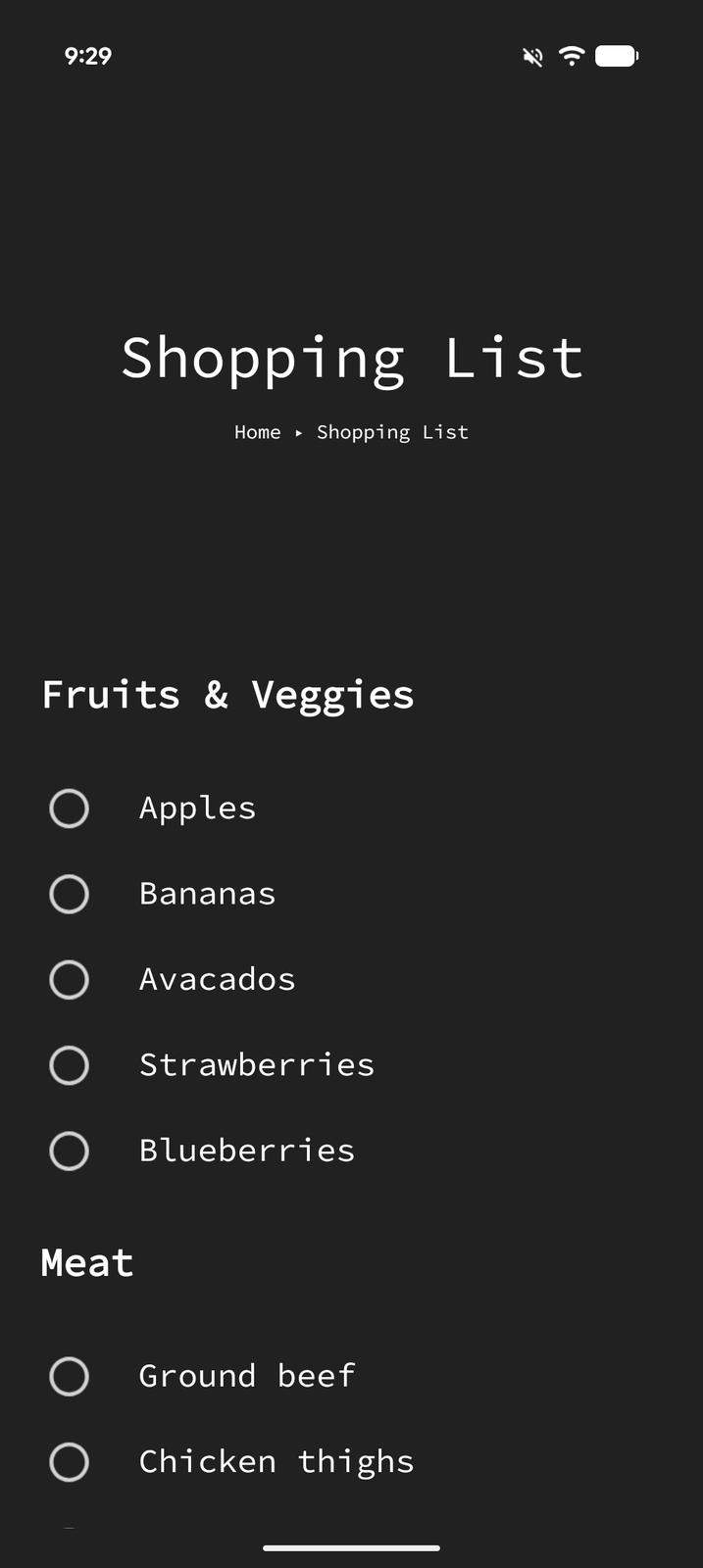
Tasks are text blocks with a completion checkbox. They're perfect for to-do lists, checklists, and tracking progress.
Creating a Task
- Enter Edit Mode and tap +
- Select Task from the item type menu
- Type your task content
Completing Tasks
Tap the checkbox next to a task to toggle its completion status. Completed tasks show a checkmark and strikethrough text.
Item Options
Dates, repeats, reminders, and auto-delete all live in an item's Options sheet. To reach it, tap the item to open its editor (or, in Edit Mode, focus the item and tap Properties), then tap the ... button in the editor's toolbar.
Auto-Delete
Tasks can be set to automatically delete when completed:
- Open the task's item options (see above)
- Turn on Auto delete when completed
When auto-delete is on, completing the task immediately moves it to the Recycle Bin. Auto-delete is only available for non-recurring tasks — a recurring task lives on after each completion, so deleting it on completion wouldn't make sense.
The Tasks View
Switch a page to the Tasks view to see every task on that page and its sub-pages in one list. Turn it on from a top-level page to cover the widest part of your tree. Three filters shape the list:
- Completion — Incomplete (the default), Complete, or All
- Date Filter — Planned (tasks with a date, the default), No Date, Today, Tomorrow, This Week, Future, Past, Forward, or All
- Grouping — Flat, or Page to group tasks by the page they live on
Reminders
Reminders are a quick-create shortcut for time-sensitive items: they create a task, open the Date & Time picker straight away, and turn on a notification for the time you pick. If you also want the task cleared once it's done, turn on Auto delete when completed in its item options.
Creating a Reminder
- Tap + and select Reminder
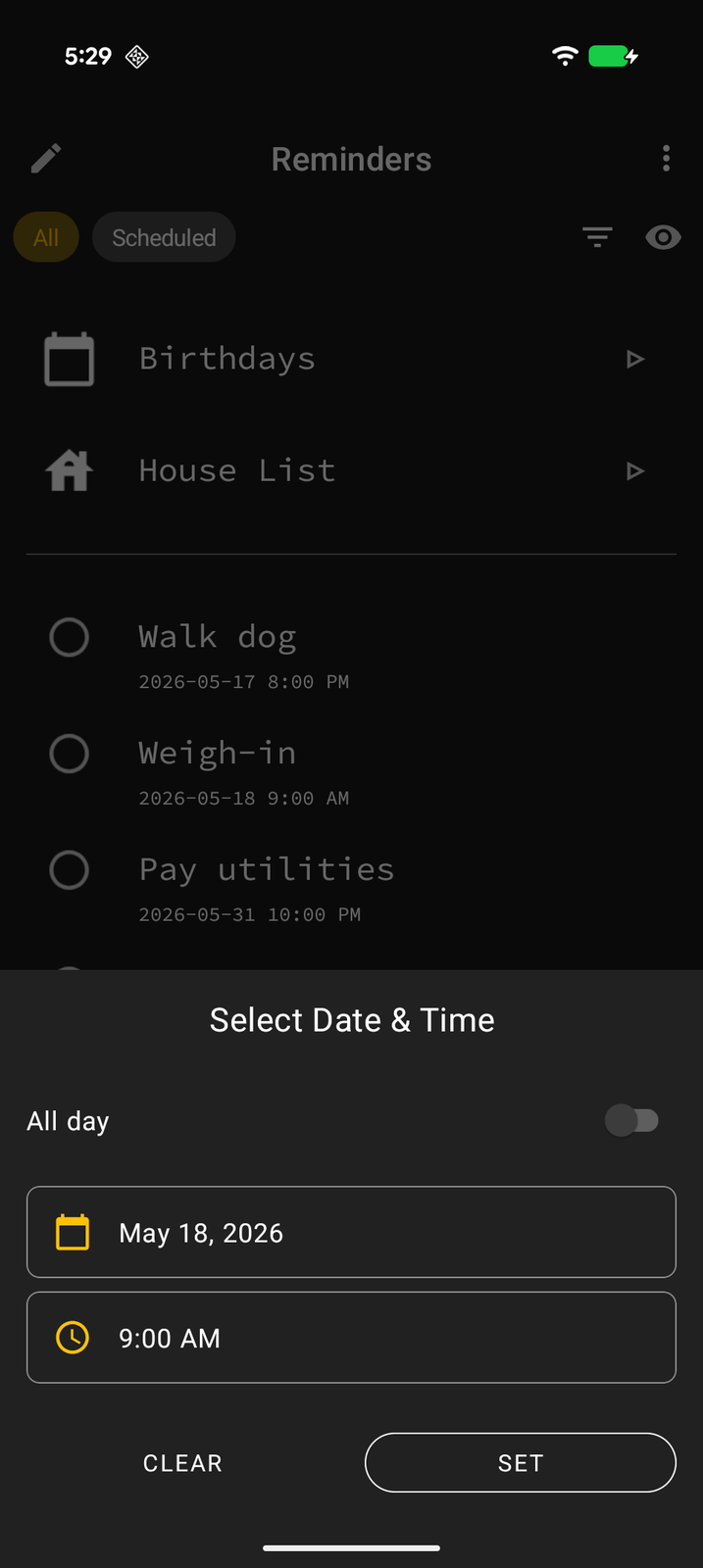
- The Date & Time picker opens immediately — set the date and time
- The reminder is created as a task with a notification set for that time
Reminder Notifications
When a reminder's date/time arrives, you'll receive an Android notification. Tap the notification to jump to the item in Tree Launcher.
You can choose how far in advance the notification fires: at the scheduled time, or 5, 15, or 30 minutes before — up to 1 hour, 2 hours, 12 hours, 1 day, or 1 week ahead. All-day items offer on-the-day, 1-day, and 1-week reminders, and their notifications arrive at 9 AM local time.
Dates and Times
Any text block or task can have a date and time attached:
- Open the item's options (see above)
- Turn on Date and pick a date
- Turn on Time to set a specific time-of-day — leave it off for an all-day item
Recurrence
Items with dates can be set to repeat:
- Hourly — Repeats every hour
- Daily — Repeats every day
- Weekdays — Repeats Monday through Friday
- Weekends — Repeats on Saturdays and Sundays
- Weekly — Repeats every week on the same day
- Every 2 weeks — Repeats every two weeks
- Monthly — Repeats every month on the same date
- Every 3 months — Repeats every three months
- Every 6 months — Repeats every six months
- Yearly — Repeats every year on the same date
You can also set an optional End repeat date. Monthly-style repeats anchored to the end of a month do the right thing — a task set for the 31st lands on the last day of shorter months and returns to the 31st afterward.
To set recurrence:
- First set a date on the item
- In the item options, turn on Repeat — it starts as Daily and opens the repeat picker
- Tap Frequency to choose the pattern, set an End repeat date if you want one, then tap Set
Completing Recurring Tasks
A recurring task shows one current occurrence at a time — the earliest one still due. If you fall behind, it simply shows as overdue; missed days don't pile up as separate entries. Checking it off marks the current occurrence complete and moves straight to the next upcoming one. Un-checking it puts things back exactly as they were.
Each task's Completion history (in item options, for recurring tasks) shows what you actually completed and lets you correct past occurrences.
Occurrences in the Scheduled View
In the scheduled view, a recurring item appears on each of its upcoming dates. Tapping an occurrence opens a small sheet with actions for that occurrence only — complete it, or delete just that occurrence without touching the rest of the series. An Edit item option takes you to the full editor when you want to change the series itself (its date, repeat pattern, or reminder).