Pages
Pages are the core building block of Tree Launcher — containers for all your content.
What Are Pages?
Pages are the fundamental building block of Tree Launcher. Every item you create — notes, apps, contacts, links, images, tasks — lives inside a page. Pages can also contain other pages, letting you build a tree structure as deep or shallow as you need.
Think of pages like folders in a file system, but more flexible. Each page displays its contents as a vertical, scrollable list.
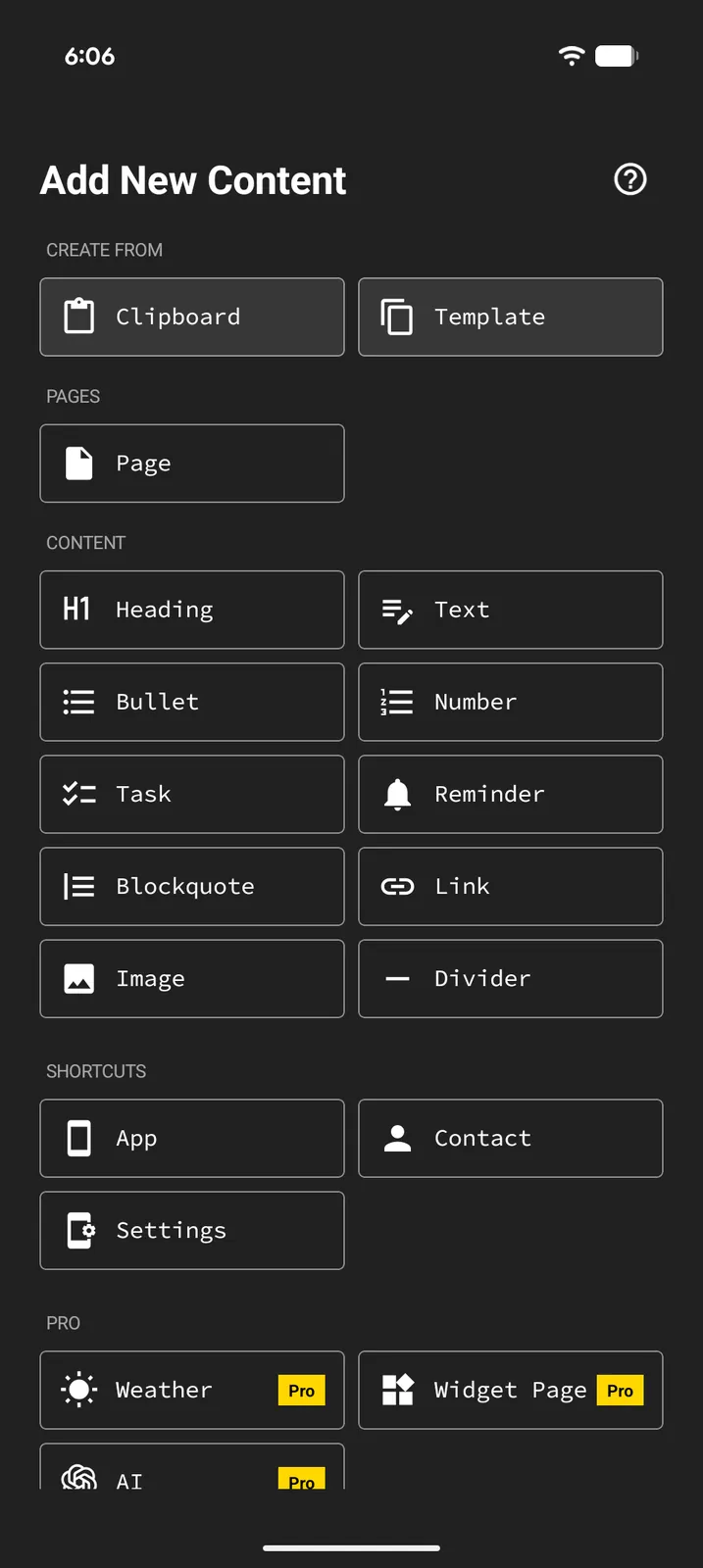
Creating a Page
- Enter Edit Mode on any page
- Tap the + button in the toolbar
- Select Page from the item type menu
- Give your new page a name
Navigating Between Pages
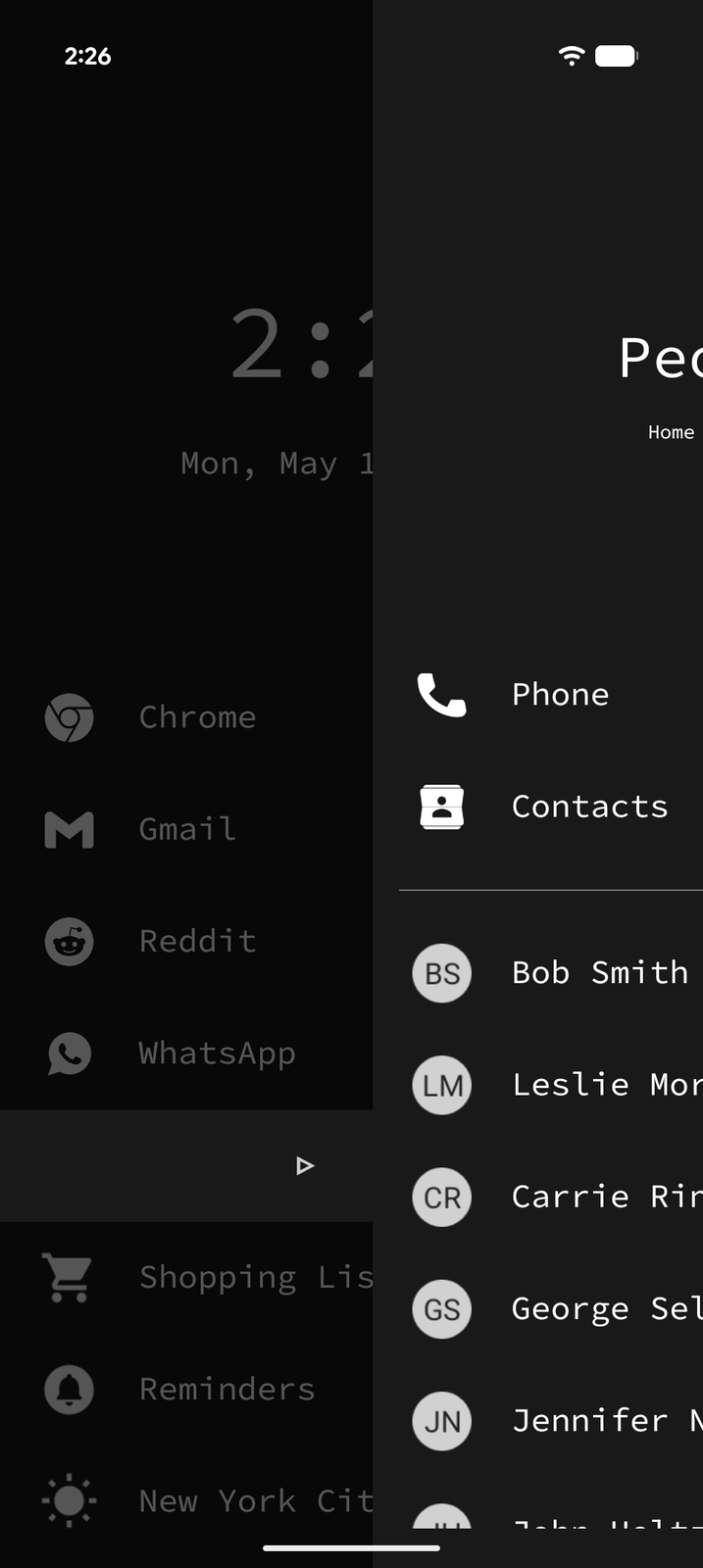
Tree Launcher uses a spatial navigation model based on swiping:
- Tap (or swipe left) on a page item to enter it
- Swipe right (or press Back) to return to the parent page
This creates an intuitive spatial metaphor: - Left = parent/ancestor pages (going "up" the hierarchy) - Right = child/descendant pages (going "down" the hierarchy)
Nesting Pages
Pages can contain other pages, creating a tree structure with unlimited depth. This is what makes Tree Launcher unique — you can organize your content in whatever hierarchy makes sense to you.
Example structure:
Home
├── Work
│   ├── Project A
│   │   ├── Tasks
│   │   └── Notes
│   └── Project B
├── Personal
│   ├── Shopping Lists
│   ├── Recipes
│   └── Goals
└── Apps
    ├── Social
    └── Utilities
Page Templates
You can save a page as a template and reuse it later:
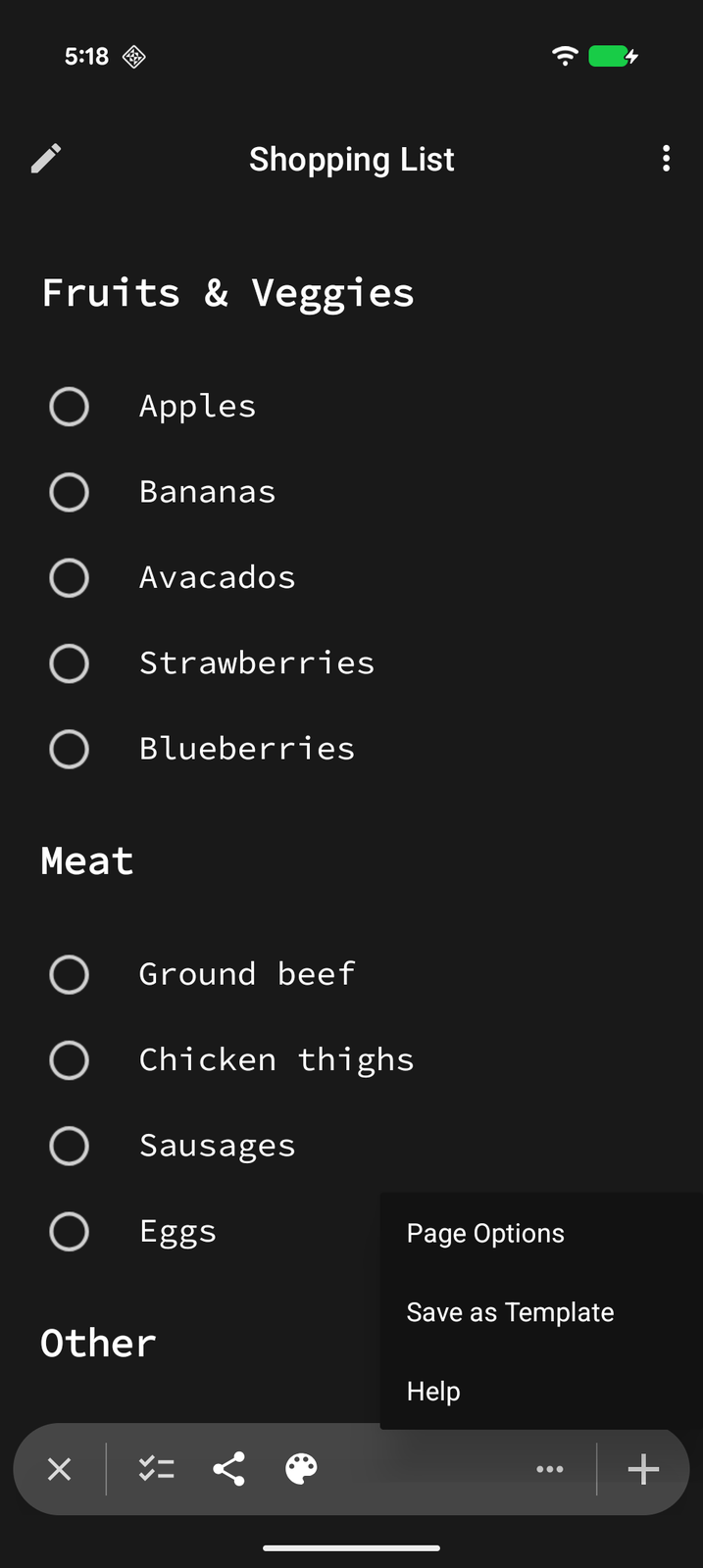
- Enter Edit Mode on the page you want to save as a template
- Tap More (...) on the edit bar
- Tap Save as Template
- To use it, tap + on any page and choose Template under Create from — pick a saved template and a copy is added to the page
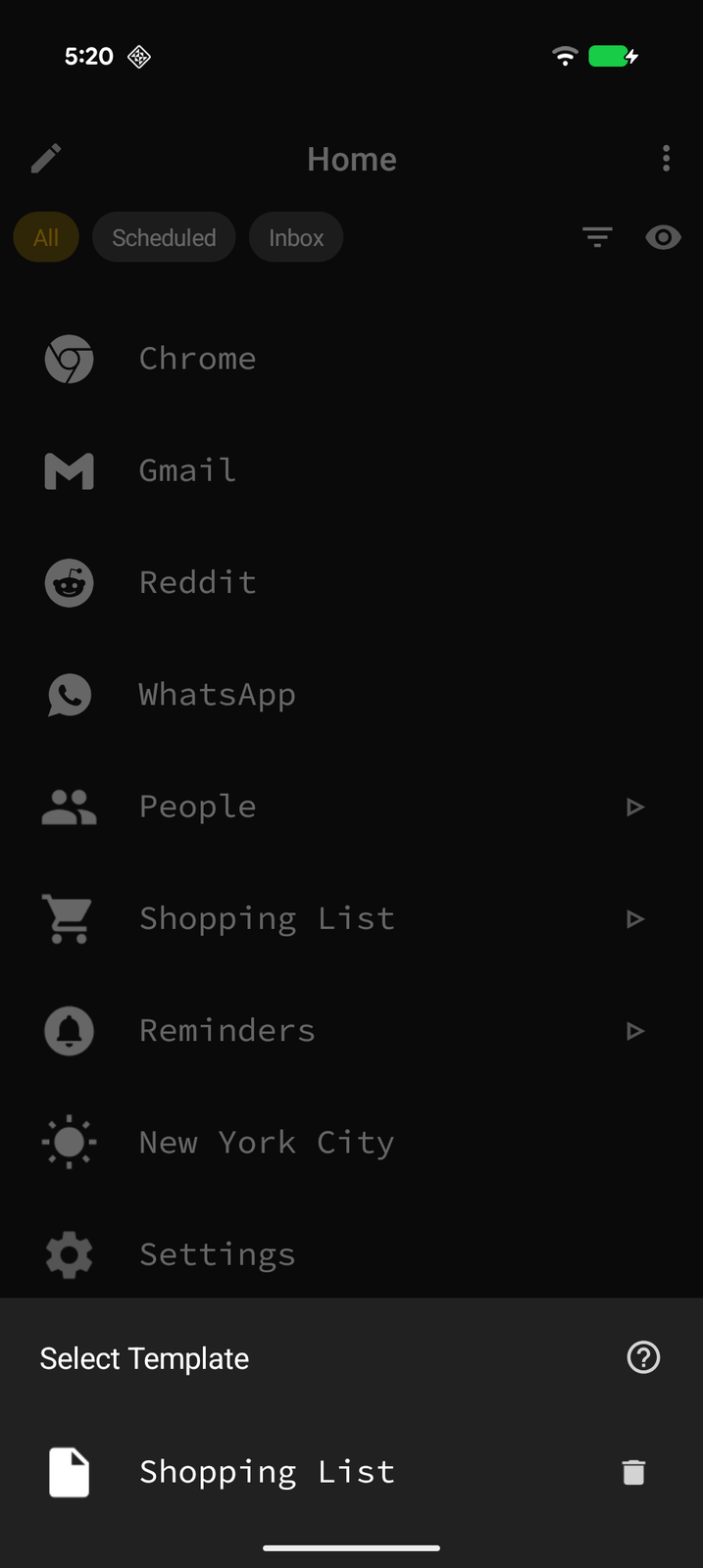
Templates are great for recurring structures — weekly planners, project outlines, meeting notes, etc. Pages that contain widgets or reminders can't be saved as templates.
Pop-Out Windows
Pages can be opened as an independent floating window:
- Open the page you want to pop out
- Tap the ⋮ page menu in the top right and choose Open in new window
- The page opens in a separate Android task/window
This option isn't available on the Home page or from inside a pop-out window.
This is useful for multitasking — reference a note while using another app, or have two Tree Launcher pages open side by side.
Page Backgrounds
You can give individual pages their own look:
- Background color — In Edit Mode, tap Background to set a custom background color for the page
A background image applies to the whole launcher rather than a single page. See Customization for more details on styling your pages.