Backup & Restore
Back up your entire Tree Launcher setup to Google Drive and restore it on any device.
Google Drive Backup
Tree Launcher uses Google Drive to back up and restore your entire setup. Your data is stored in your personal Google Drive account.
Setting Up Backup
- Go to Settings → Backup
- Sign in with your Google account — the Sign in with Google button is on the Account screen
- Grant Tree Launcher access to its private app data area in your Google Drive
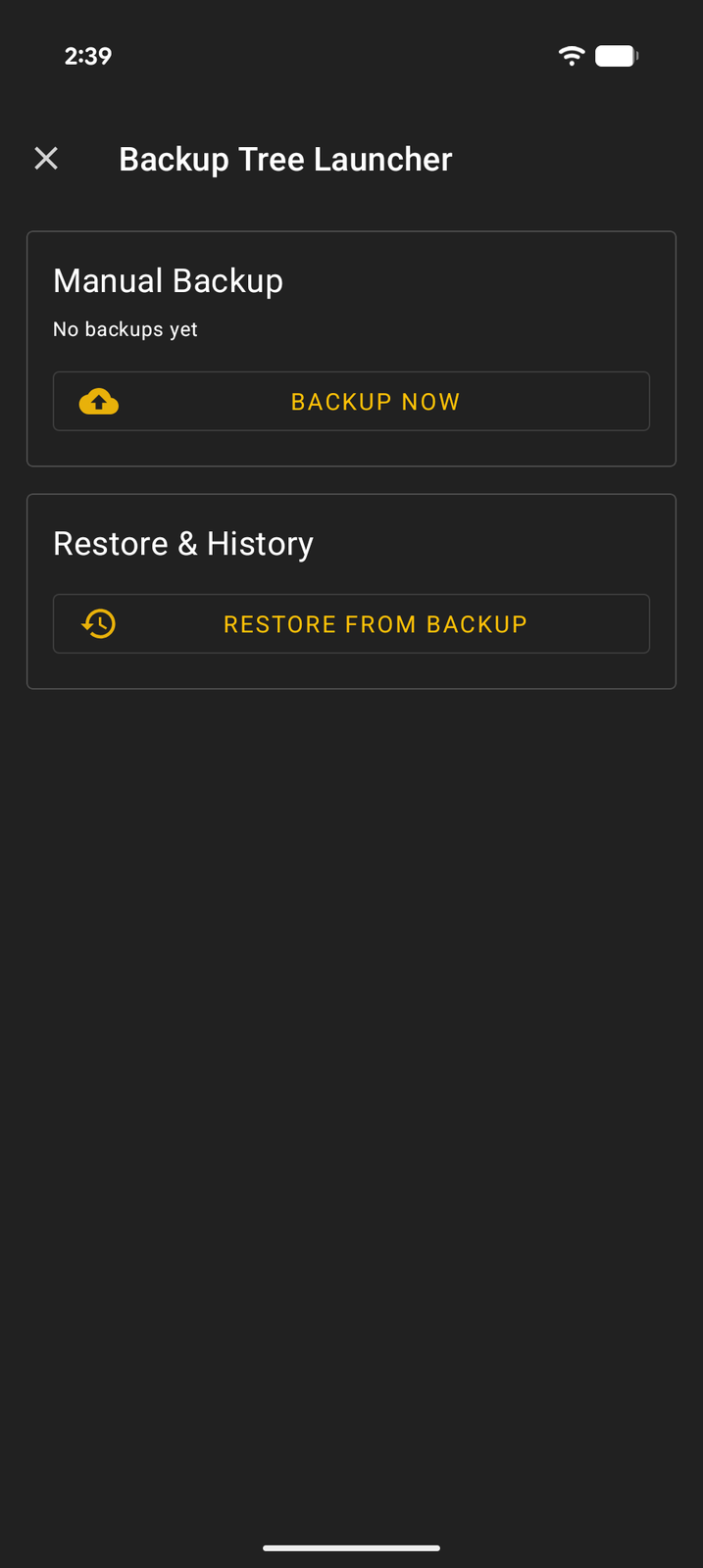
Creating a Backup
- Go to Settings → Backup
- Tap Backup Now
- Wait for the backup to complete
The backup includes: - All pages and their content - Item settings and properties - App shortcuts and configurations - Customization preferences - Images and other media
If images and files make the backup large, you can choose to back up without them to reduce the size.
Restoring from Backup
- Install Tree Launcher on your new or reset device
- Go to Settings → Backup
- Sign in with the same Google account
- Tap Restore from Backup, pick a backup from the list, and confirm
- Tree Launcher restarts to apply the restored data
Important: Restoring replaces all current data. Make sure to back up your current setup first if needed.
A backup made on a newer version of Tree Launcher can't be restored on an older one — update the app first, then retry.
What's Backed Up
| Included | Not Included |
|---|---|
| All pages and items | App installations (apps must be reinstalled separately) |
| Text, tasks, events | Widget configurations (must be re-added) |
| Links, images, contacts | |
| Tags and organization | |
| Settings and preferences | |
| Custom icons and colors |
Managing Backups
Your backups are stored in Google Drive's hidden app data area, which only Tree Launcher can access. They don't appear as a folder in Drive and can't be browsed or deleted from the Drive app.
- Tree Launcher keeps your 5 most recent backups; the oldest is removed when a new one is made
- View them in the app under Settings → Backup → Restore & History, which shows each backup's date, size, and item counts
- Backups count toward your Google Drive storage quota