Scheduled
Track reminders and events with dates and times, and see what's coming up in the Scheduled view.
Events
Events are items with a date and time. Like Apple Reminders, they're about knowing what's coming up — not running a full calendar. Use them to track appointments, deadlines, and scheduled activities.
Creating Events
Any text block, task, or link can be turned into an event by adding a date:
- Tap the item to open its editor (or, in Edit Mode, focus it and tap Properties)
- Tap Date and set the event date
- Optionally set a Time for a specific time-of-day
The same controls — along with Repeat and Reminder — are also in the editor's Options sheet, behind the ... button in its toolbar.
All-Day Events
An event without a time is an all-day event:
- In the editor's Date & Time picker, turn on the All day switch.
- In the Options sheet, leave the Time row off (or turn it off) — the item then shows All day.
All-day events appear without a specific time.
Event Properties
| Property | Description |
|---|---|
| Date | Date of the event |
| Time | Time of day (optional — omit for all-day) |
| Repeat | Recurrence pattern: Hourly, Daily, Weekdays, Weekends, Weekly, Every 2 weeks, Monthly, Every 3 months, Every 6 months, or Yearly |
| Reminder | Notification at the event time (the default), or 5, 15, or 30 minutes, 1, 2, or 12 hours, 1 day, or 1 week before. All-day items offer on the day (9 AM), 1 day before, or 1 week before. |
The Scheduled View
The Scheduled view gathers tasks and events from the page it's turned on and every page beneath it, so you can see them in one place. Turn it on from a top-level page to cover the widest part of your tree.
Switch between Day, Week, and Month views from the Calendar Options sheet. The same sheet lets you turn on your device calendars (Google, Outlook, etc.) and sync them individually.
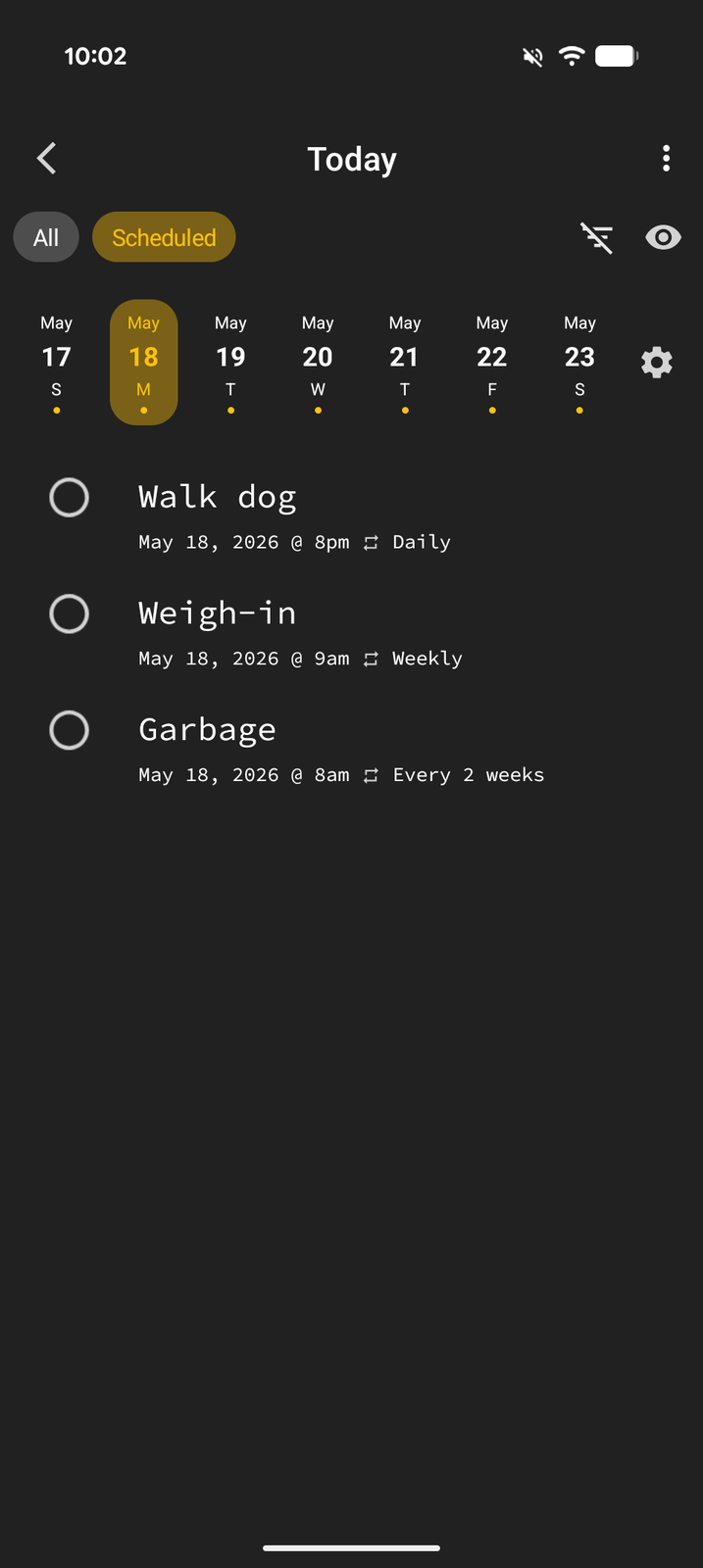
This is powerful for seeing what's coming up next without leaving Tree Launcher.
Recurring Items in the Scheduled View
Recurring items appear once per upcoming occurrence. An overdue recurring task shows as a single entry on today, and past days show only the occurrences you completed.
Tapping an occurrence opens a small sheet for that specific occurrence — you can complete it or delete just that occurrence. Use the Edit item option in the sheet to change the whole series.
External Calendars
You can add your existing calendars (Google, Microsoft, and others) so their events appear in the Scheduled view alongside your reminders:
- Open the Calendar Options sheet from the Scheduled view
- Tap Grant calendar access if prompted
- Toggle individual calendars on
Each calendar can also be synced on demand from the same sheet. Calendar choices are saved per page, so each Scheduled view keeps its own set.
For creating, editing, and managing detailed calendar events, use your provider's own app — Tree Launcher is built to show you what's upcoming, not replace your calendar.